Invitations and RSVPs
Check a Wedding Invitation QR Code Before You Print
By MyWeddingDayUpdated
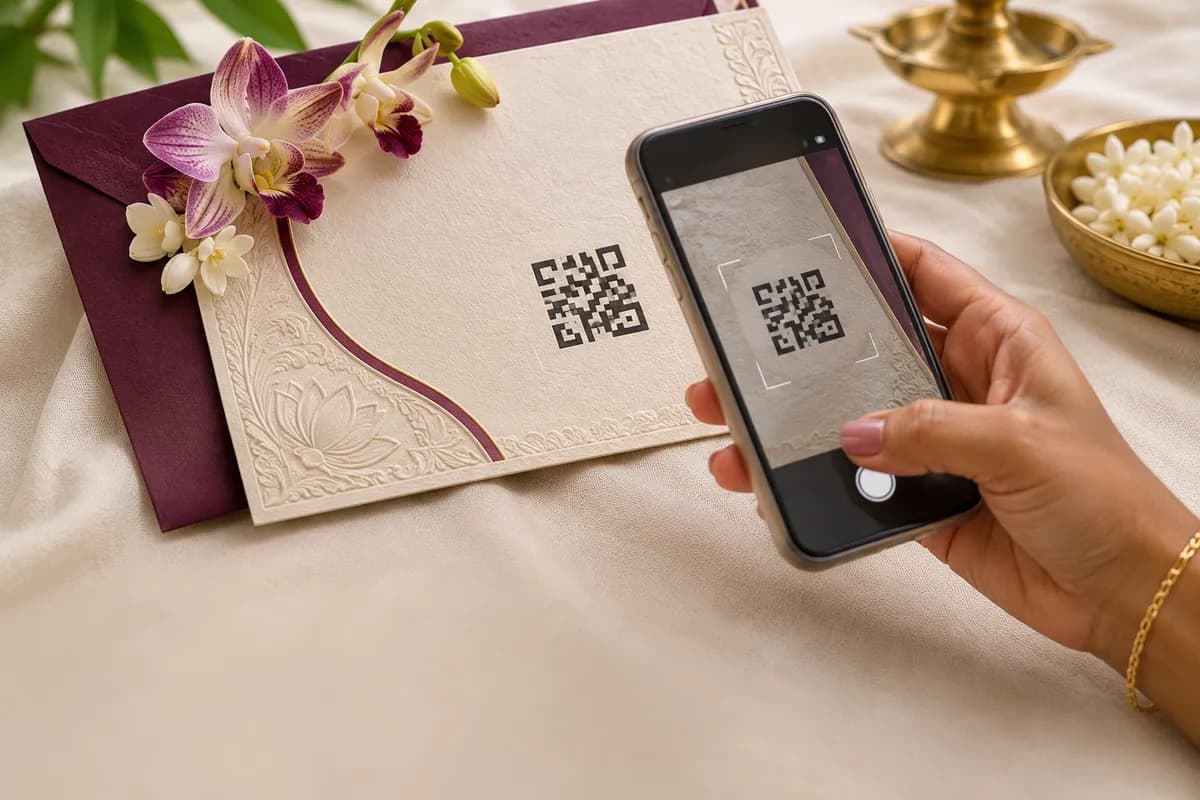
A code can scan from the draft on your laptop and fail on the finished card. It can also open a page meant for a different event or household. Treat the destination and the production sample as two separate checks.
Confirm where a shared code is meant to take guests
Decide what a printed code should open. A public directions page can be used for a batch when its content is appropriate for everyone receiving it. Personal response links need to match the household receiving the card. Check an actual printed example from both the reception and homecoming piles before approving. Verify what a guest can see without signing in, what the reply does and which event it appears under. If a link can change, agree who controls the redirect or replacement before committing it to paper.
Ask the stationer to print a test on the chosen stock at final size. Scan it with more than one ordinary camera. Try a slightly dim room, a natural angle and the exact finish the card will have. Check that decorative lines or a border are not too close to the image. When you approve, save the destination and proof with the order so they can be retested if the card design changes.
Give every guest another way to reply
Put a readable phone number or short address near the code and say what it is for. Verify that the number is answered by the person who owns the RSVP list. If a guest calls because the scan fails, ask which invitation received the code and help them reply without waiting for a fix. If a printed run has the issue, check which print batch and event were affected before sending a correction.
Approve a production sample and a receiving plan
Ask the stationer to show the exact dimensions, paper, envelope and finish in the quote. Find out how a sample is made and what it can tell you. A PDF is usually the right place to check spelling and arrangement. A physical sample lets you feel the stock and assess contrast, folds and the space left for handwriting. Ask whether colours and finishes will match the final run closely enough to approve. Check where artwork is trimmed and whether important lines sit safely inside that area.
Make an approval checklist for the viewer with the best source of each fact. The ceremony lead confirms the event timing, the families check names and the RSVP owner tests the contact method. Scan any code on a real printed sample and open the link from more than one device. Put all corrections into one list. Ask the stationer to return a version with the corrections applied and save the exact file used to approve printing.
Agree who receives the finished cards and when someone will check the delivery. Open boxes from different parts of the order and check quantity, envelopes and any distinct inserts. Compare the delivered card with the final proof. If part of the order is wrong, photograph the affected batch and give the stationer the order reference and required date for replacements. Keep the correct stacks separated until the discrepancy is resolved. This makes it easier to deliver the ready sets and avoid mixing revised and earlier cards.
Test the invitation on a phone outside your workspace
Send a sample to a trusted person using the channel most guests will receive. Have them open it outside your owner account on a phone. Ask them to find the event title, the arrival time, the map and the reply form without instructions. Try the link from a messaging app and a normal browser. When the invitation offers personal details, use a test household with sample names. This gives you a way to test personalisation and access without exposing someone's real guest record.
Check the display on a smaller screen and under an ordinary mobile connection. Photos should leave the event details quick to reach. Scroll to the reply area and check what happens after the test person submits one attending guest, declines or closes the page before submitting. Confirm the wording for successful submission and check where the completed reply appears in the workspace. If you are collecting responses for several events, repeat the test for each event invitation and compare the saved replies to the actual selection.
Verify the external parts as well. Check that the map pin has the right vehicle approach and that the displayed reply number is reachable. Open a revised test version if you change a date or entrance after first approval. Keep the sample message and record the final test date where the sender can see it. When you find a fault, fix it before sending to the next batch and keep a short fallback message ready for a guest who needs the details by phone.
Keep personal invitation links with the intended household
Before handing out links, distinguish a general information page from an invitation that already identifies a guest group. A general directions page can be shared with a larger audience if it contains only public information. A personal link should reach the intended household directly. Check the recipient and event when copying it. If a family helper is sending links, give them the minimum set they need and use household names that make a mix-up easy to spot.
If a personal link lands in the wrong chat, contact the person who sent it and have them stop the batch long enough to identify the affected household and event. Ask the unintended recipient to disregard it. Check whether anyone submitted an answer before you treat the record as the household's response. Use whatever replacement or sharing controls the workspace provides and test the new link with the recipient. Where you cannot confirm the old link's status, keep a record of which reply channel you have agreed with the household.
Send corrected information in a fresh direct message with a clear explanation of which invitation to use. Keep the incident record limited to what the organiser needs and avoid forwarding screenshots with unnecessary contact or guest details. Review how the mix-up happened before sending another batch. A common fix is to open one household record at a time and confirm the sender can repeat the event name and recipient before copying the link. That check also helps when two relatives have similar names.
Keep one master copy for digital and printed details
Place the event name, room, date, arrival time, map pin and RSVP method in one reference that both the stationery and digital teams use. Add separate rows for each event, including the homecoming if it has its own location and headcount. Agree who can approve a change. A designer should know which details are confirmed and which ones can remain as placeholders in a proof. A family volunteer should know which copy to use when answering a guest's question.
When an update is approved, mark the exact old and new details and list which materials already went out. A change to parking instructions may require an updated digital page, an insert and a message to guests catching a shuttle. A date or venue change may require a broader notice. Use language that spells out the new instruction and the event it affects. Send it by the same channel the household used previously if that channel reached them. Make a phone call where the change has a large impact and the usual recipient is hard to reach.
Test the new version like a fresh invitation. Check that the URL opens, the map pin points to the correct approach and the displayed dates still match the event that the household can attend. Date the master and keep one record of whom you contacted. A volunteer who joins near the wedding can then answer from the current information without guessing which card or chat message was the latest.